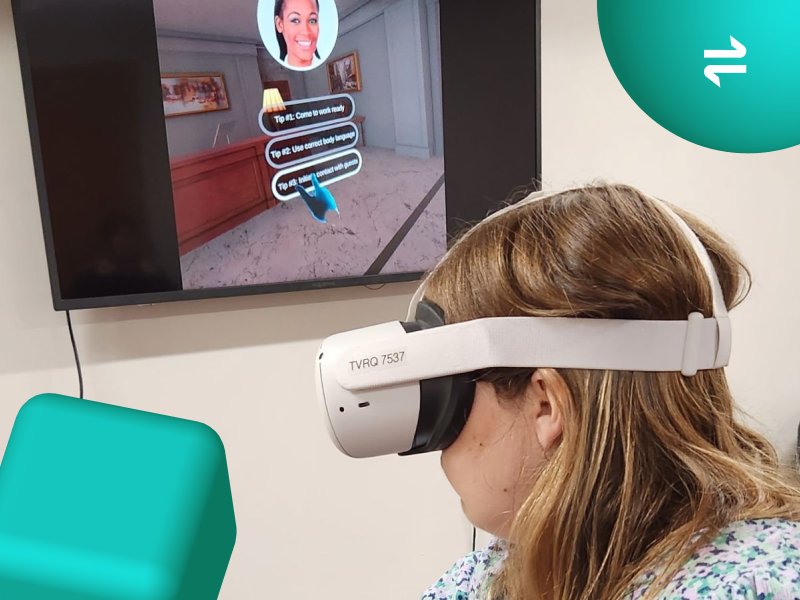
We've rolled out a range of updates across Transfr for learners, instructors, and admins. Here's a look at everything that's new.
Transfr Trek
Explore two new careers in Trek VR
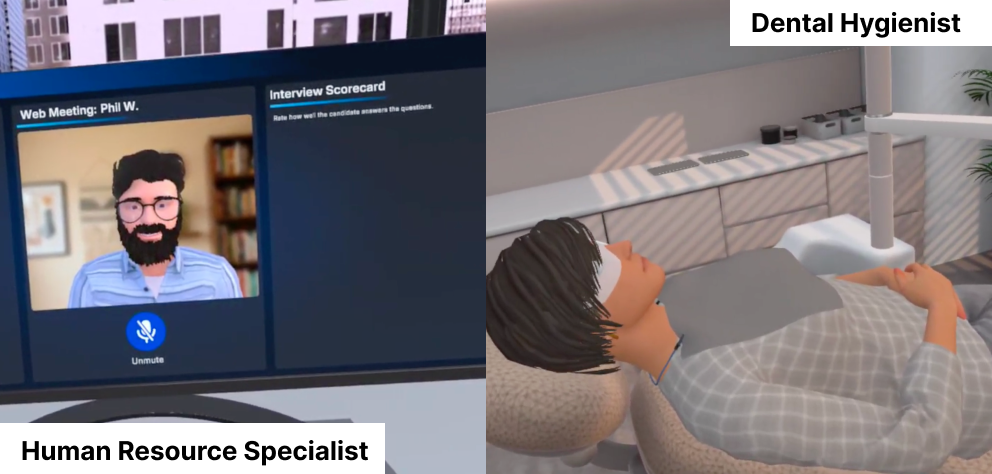
Learners can now step into a dental office and an HR department in Trek VR. The Dental Hygienist and HR Specialist simulations show what these roles look like day to day, giving learners more paths to explore in healthcare and business.
How to access it: Both simulations are available now in the Trek VR career library.
Restricted Mode for Trek Mobile
If your organization needs a more locked-down Trek Mobile experience, admins can now turn off email sharing and external links for the whole organization. It's a simple way to meet stricter device and data policies without changing how learners explore careers.
How to access it: Admins can turn on Restricted Mode at the organization level. If the option doesn't appear, clear your browser cache and reload.
A smoother Trek VR app
The latest Trek VR app runs more smoothly for learners and instructors:
- Faster menus and a clearer Start button, now placed above the simulation title.
- Bug reports from the headset. Select Troubleshooting, then Send Bug Report, to send the details straight to Technical Support.
- No end-of-simulation popup for events. For high-volume sessions, ask your CSM to send learners straight back to simulation selection.
Trek Mobile also has refreshed recommendations and new thumbnails, so learners can spot the newest careers.
Programs and Curriculum
Build your own courses with Course Builder
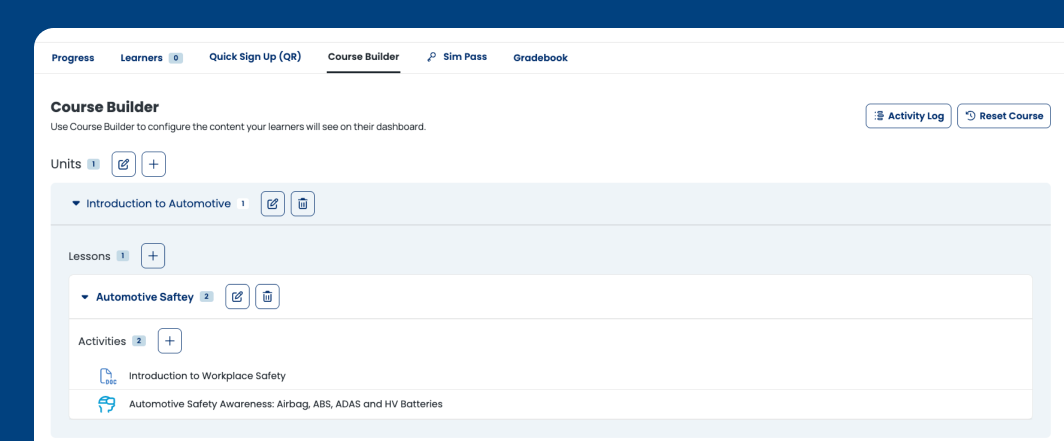
You can now build your own courses right in the Dashboard. Choose from Transfr's library of activities, worksheets, and resources alongside Trek career exploration and Train skills training simulations, arrange them into units and lessons, and assign them to a classroom. Trek Handouts and Accommodated Handouts can be added too, so everything learners need lives in one place.
How to access it:
- Create a new classroom and select "Programs."
- Select "Build Your Own."
- Complete classroom setup.
- In your Program classroom, select "Course Builder" in the navigation.
- Browse and select the simulations, handouts, and activities you want.
New resources for Fundamental Skills and Pre-Employment Programs
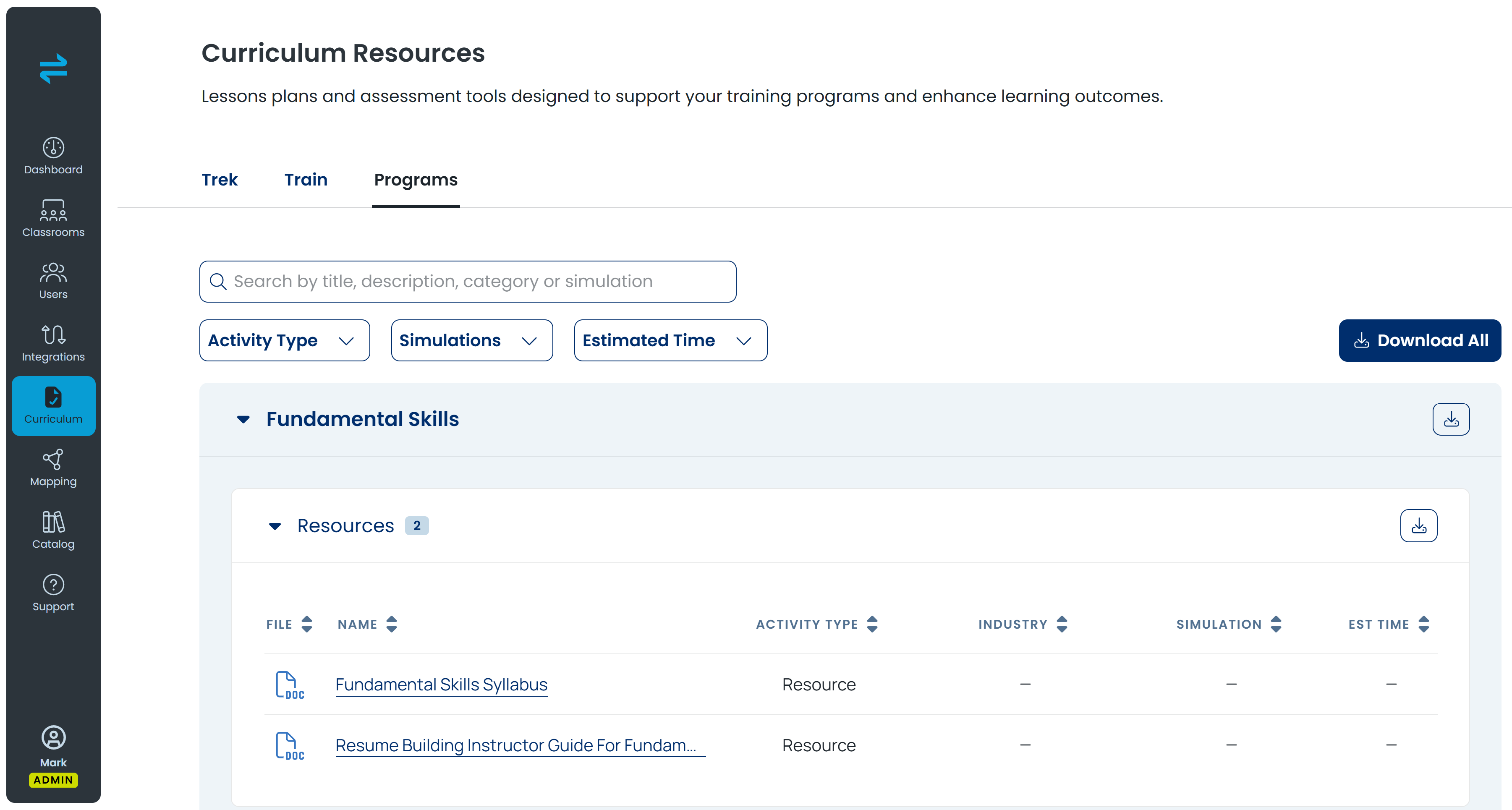
Instructors teaching Fundamental Skills now have a program syllabus and a resume-building guide that helps learners turn what they've completed into resume language employers recognize. Pre-Employment Program facilitators have a new toolkit that covers the program from setup to graduation, including planning checklists, a learner orientation, course syllabi, standards mapping, answer keys, and learner supports.
How to access it: Go to Curriculum in the main navigation, select the Programs tab, and look for the Resources group at the top of your program's Curriculum Resources. Learn more about Curriculum Resources.
Worksheets for every Trek VR simulation
Curriculum Resources now include a worksheet for every Trek VR simulation, so instructors can pair any simulation with a ready-made activity and extend learning before or after the headset comes off. Organizations with a Virtual Health Clinic license also now have access to Trek curriculum materials.
How to access it: Select Curriculum in the main navigation, then the Trek tab.
Dashboard and Admin Tools
New reporting available
The Dashboard homepage is now one view of how your learners are doing across Transfr. All of your existing data and filters are still here, including date range, product, program, and module. What's new is that you can choose which outcomes you see first when you log in, including new ones like interest inventory completions, career plans, instructional hours, and measurable skill gains. From any outcome, you can drill down from district to school, classroom, and individual learner, then export the detail you need.
How to access it: Select the pencil icon at the top right of your homepage, check the outcomes you want to see, and select Done. Learn how to personalize your homepage.
Year-long classroom Sim Passes
Classroom-level Sim Pass codes now last 365 days instead of a single use. Learn more about Sim Passes.
Change the products in an existing classroom
Need to add Train to a Trek classroom, or take a product out? You can now change the products in a classroom you've already created instead of starting over. Your roster and history stay intact.
Pause and resume roster syncing
Admins can now pause automatic roster syncing from organization settings. If your SIS data isn't ready, or a sync is bringing over learners you don't want yet, you can stop it without opening a support ticket. It works with both Clever and ClassLink, and you can still run a manual sync any time while automatic syncing is paused.
More ways to stay organized
- Archive classrooms and learners. Archive what you're no longer using to keep your active view focused, while all history stays available for reporting. Reactivate anything from the list or detail view, and learners who drop off a Clever or ClassLink sync are archived instead of deleted.
- Gradebook overrides. Instructors can exempt a learner from an activity or enter a score by hand in the Training gradebook, so absences or work completed another way don't skew class data.
- Device tags. Label headsets by kit, campus, or room on the Devices tab, then filter or group by tag to see at a glance which group needs charging or an update.
- Last login dates. The Users tab now shows when each user last logged in, so you can follow up with anyone who hasn't gotten started.
- Automatic badges and certificates. Learners receive their credentials as soon as they finish the required work, and facilitators can access them for export without logging in to the learner dashboard.
A new, open Support Center
The new Support Center at support.transfrinc.com needs no login, is fully searchable, and is organized around what you're trying to do. About 40 articles are new or rewritten, including short step-by-step videos for the setup steps that trip people up most. The Support button in the Dashboard takes you straight there, and old bookmarks redirect automatically.
See it in action
Want a walkthrough of any of these updates? Reach out to your Customer Success Manager, or visit the Support Center for step-by-step guides.